
How to change the order of your News Posts
It is very common, especially for brand new sites, to add a lot of news all at once from previous archives, etc. By default, the News Posts are ordered in the order they were added to your site, but you might want to move news posts around and not always have them as the “next” post. Posts can be moved around by changing the publish date. This tutorial will explain how.
Step 1: Load up the News Posts List

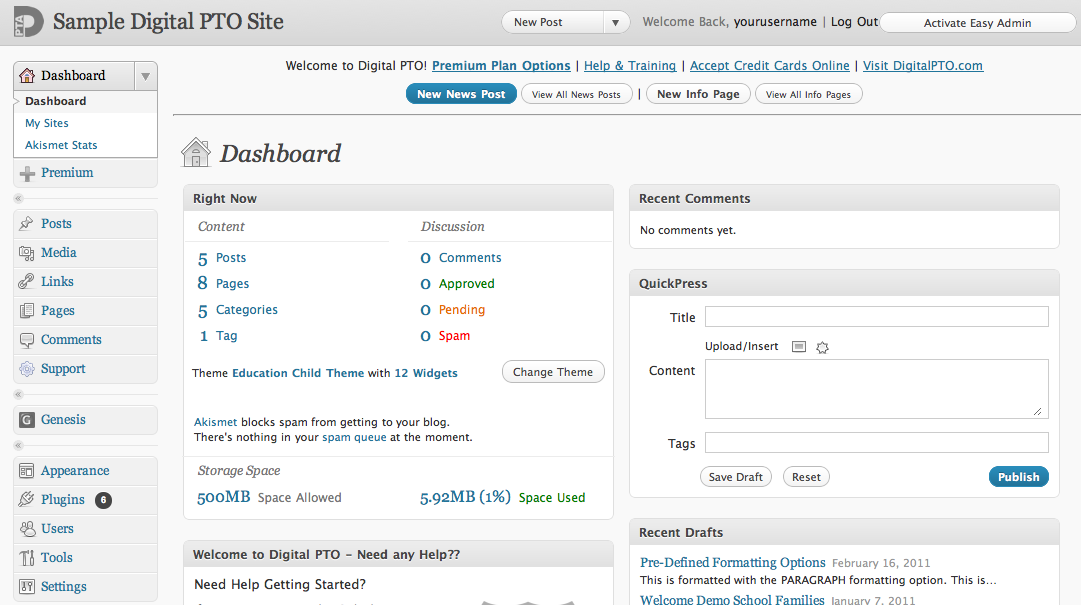
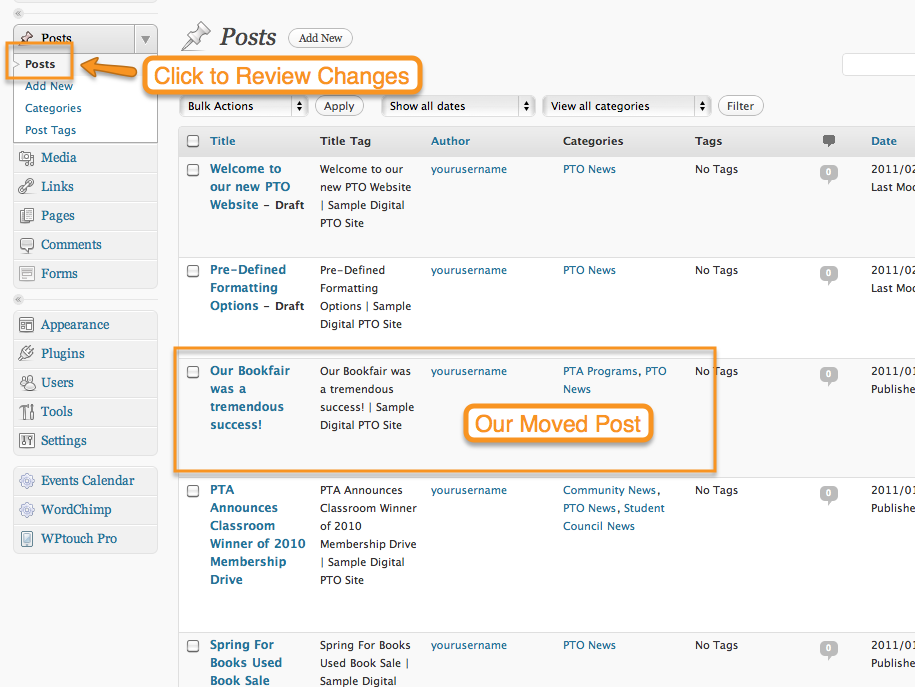
Click on the POSTS menu and then click on POSTS below to see the entire list of your news posts.
Step 2: Click the TITLE of the News Post you want to move
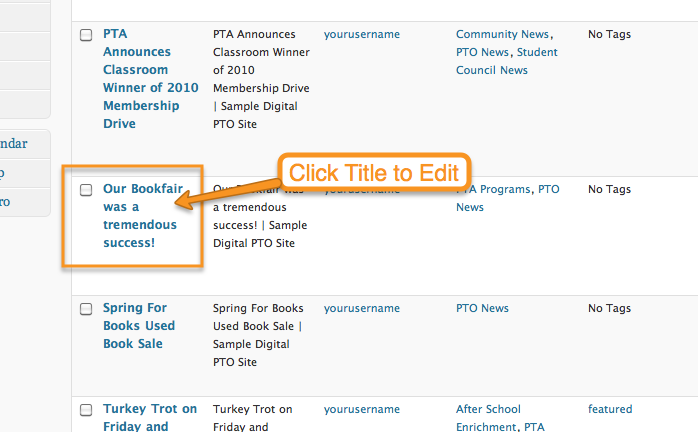
Click the title of the news post (just like if you were going to edit the post for something else) to open up the edit screen.
Step 3: In the PUBLISH MENU, click EDIT next to the DATE
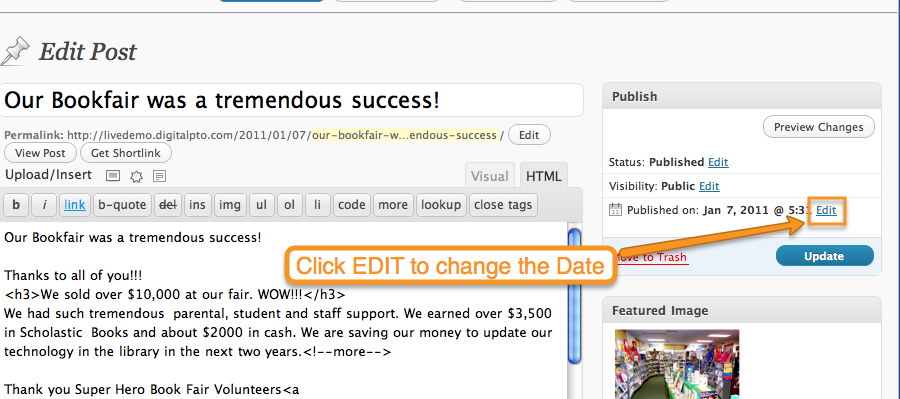 Find the Publish Menu located at the top-right corner of the page. In that menu, you will see a “Published on:” with a date and time. Next to that you will see an EDIT link. Click that link.
Step 4: Change the Date as needed
 After you click EDIT, you will see the date and time of the post in an editable format. To move the post around, simply change the date (or time) to a time after or before the post you wish to move it next to. For example, the sample post above was originally from Jan 07, 2011. I actually want it to get listed ahead of a post that was made on the 8th, so I am going to change this post I’m editing right now to January 9th, 2011 and the order will change.
Step 5: Update the News Post
 After you click EDIT, you will see the date and time of the post in an editable format. To move the post around, simply change the date (or time) to a time after or before the post you wish to move it next to. For example, the sample post above was originally from Jan 07, 2011. I actually want it to get listed ahead of a post that was made on the 8th, so I am going to change this post I’m editing right now to January 9th, 2011 and the order will change.
 Are you a Premium Plan member yet? It might be time to get started.





 Need More?