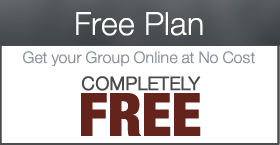
It's Free. Forever. Seriously.
Supported by minimal advertising, the perfect way to get your Parent Group online at no cost. Now Includes the Events Calendar!
Compare All Plans »
Get Started Now »
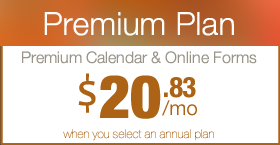
Online Forms, Pro Themes
Unlock Online Family Registration Forms, Volunteer Forms, Form Creation, Premium Level Themes, and 500mb of space.
Compare All Plans »
Get Started Now »

No Ads & Unlimited Pages
Turn off third party ads, unlock unlimited informational pages and upgrade to 50mb of storage space.
Compare All Plans »
Get Started Now »
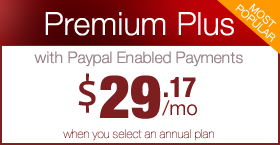
Accept Paypal Payments.
Unlock the power of accepting payments with Paypal on your Forms. Premium Themes, pre-built form library, 1gig of storage.
Compare All Plans »
Get Started Now »
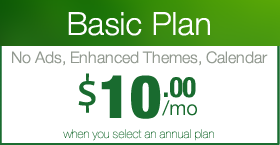
More themes. More Space.
Add enhanced themes with the events calendar, 200 mb of storage space, custom domain names and more.
Compare All Plans »
Get Started Now »

Sign Up Now
It's free to get started, so don't wait any longer! Start with a free plan and grow as needed!
Compare All Plans »
Get Started Now »




 Are you a Premium Plan member yet? It might be time to get started. Learn More »
 Join Premium!
 Need More?